Getting started
Create your account, add a shipping address, and follow the influencers you love.
The five tabs
TheFloor, MyRack, Dibs, Give, and Me — what each part of the app is for.
Claiming items
First come, random draw, or influencer picks — the three ways to claim.
Paying & shipping
The 24-hour window, secure checkout, and tracking your order to your door.
Saving & codes
Save favorites with the heart, and unlock storefront giveaways with a code.
Comments & safety
Join the conversation, and report anything that breaks the community rules.
Account & security
Notifications, Face ID unlock, appearance, and managing your account.
Ratings & reviews
Rate your experience after delivery and help the community find great closets.
For influencers
Apply, list items (with AI help), fulfill orders, and track your social impact.
Campaigns
Multi-drop giveaways where fans race friends onto a live leaderboard to win.
What is Off The Rack?
Off The Rack is a mobile marketplace where influencers give away real clothing from their own closets — not to sell it, but to give great pieces a second life and grow their community. Every item is genuinely free. As the person claiming an item, all you pay is the shipping cost plus a small platform service fee, and both amounts are shown clearly before you commit to anything.
The result is a more sustainable way to shop: clothes stay in use and out of landfills, influencers connect with the people who love their style, and you get pieces you'll actually wear without the retail price tag. Off The Rack is available in the United States only at launch.
Getting started
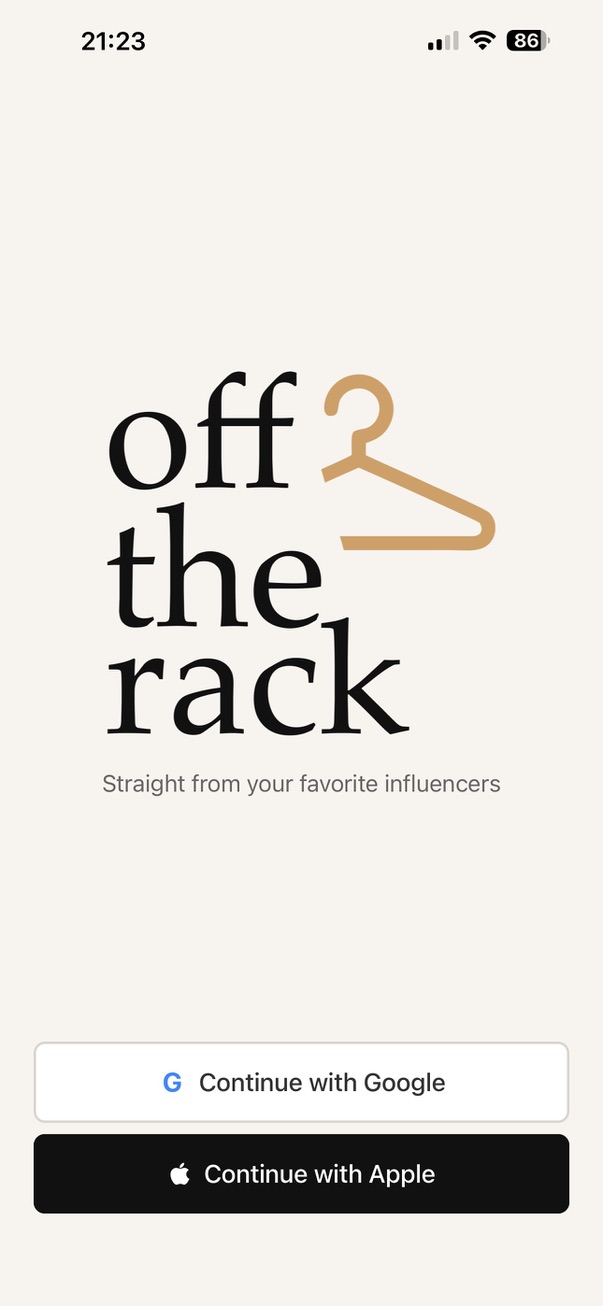
If you're brand new, here's how to get set up. Download the app and open it — then on the welcome screen, tap Continue with Google or Continue with Apple. There's no separate password to create or remember.
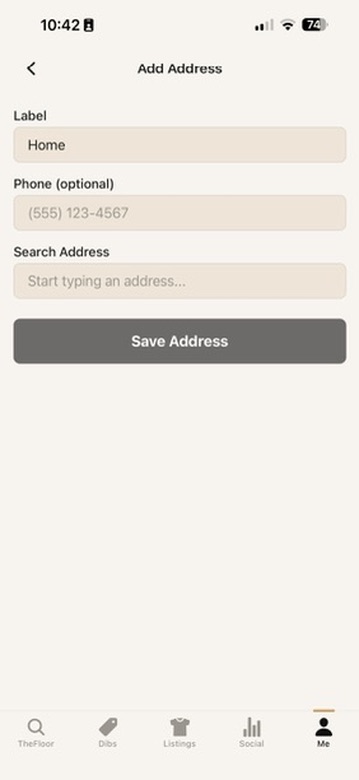
From there the app walks you through two quick things. First it asks for a shipping address (you'll need one before you can claim anything): tap Add address, start typing in the Search address field, pick your address from the list, and tap Save address. Then it asks whether you're here to shop or to give clothing away — choose whichever fits, and you can change it later.
Want to add or change an address afterwards? Open the Me tab and tap My addresses, then Add address. You can save several and tap the one you want to mark it as your Default. With an address saved, head to TheFloor and tap Follow on any influencer whose style you love — from then on, their new drops collect in your MyRack feed.
Finding your way around
The app is organized into tabs along the bottom of the screen. Here's what each one is for. (Influencers also get a Give tab and, once they connect an account, a Social tab.)
TheFloor
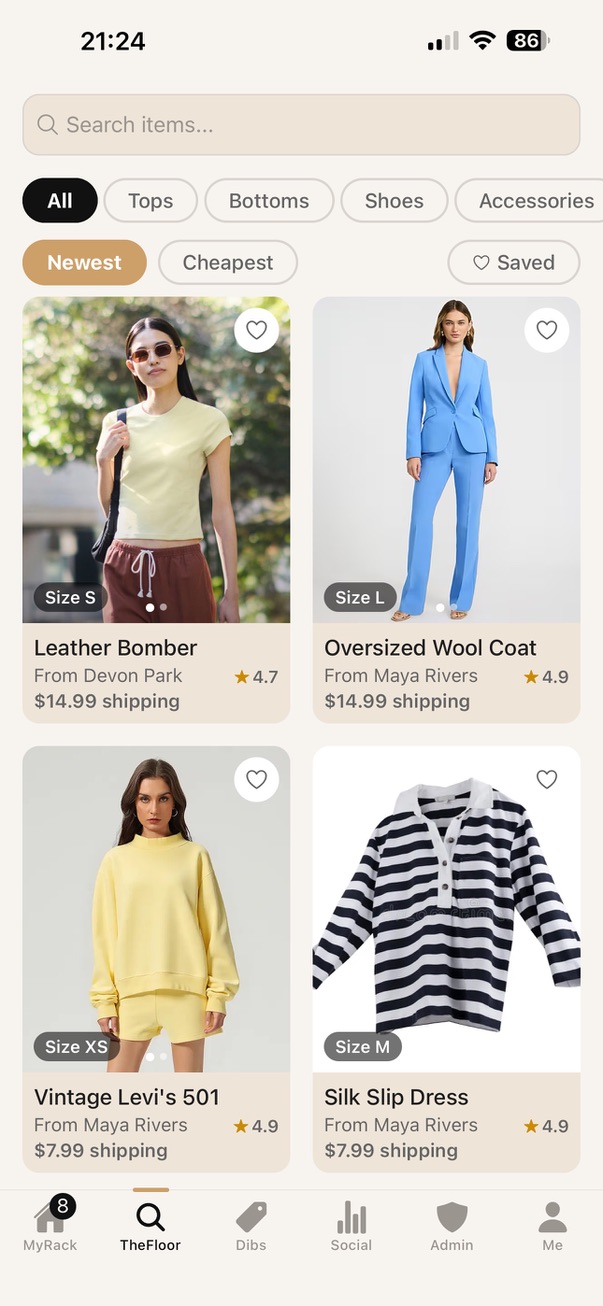
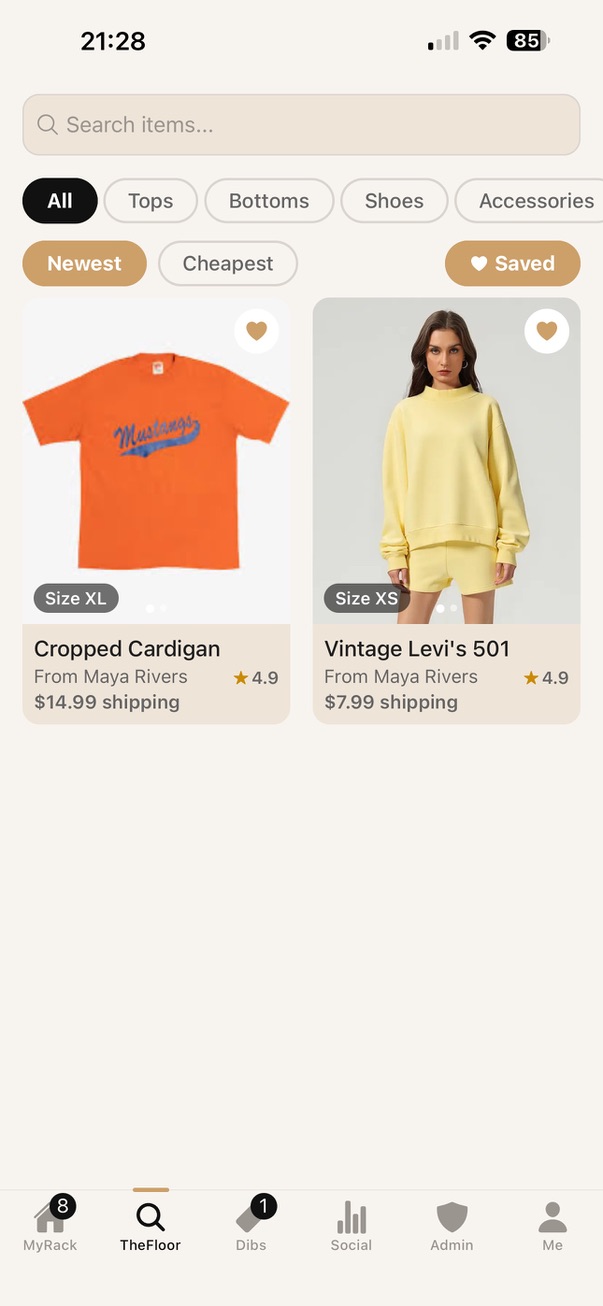
The main marketplace — every available item. Search, filter by category, sort by newest or cheapest, and flip on the Saved filter to see only items you've hearted.
MyRack
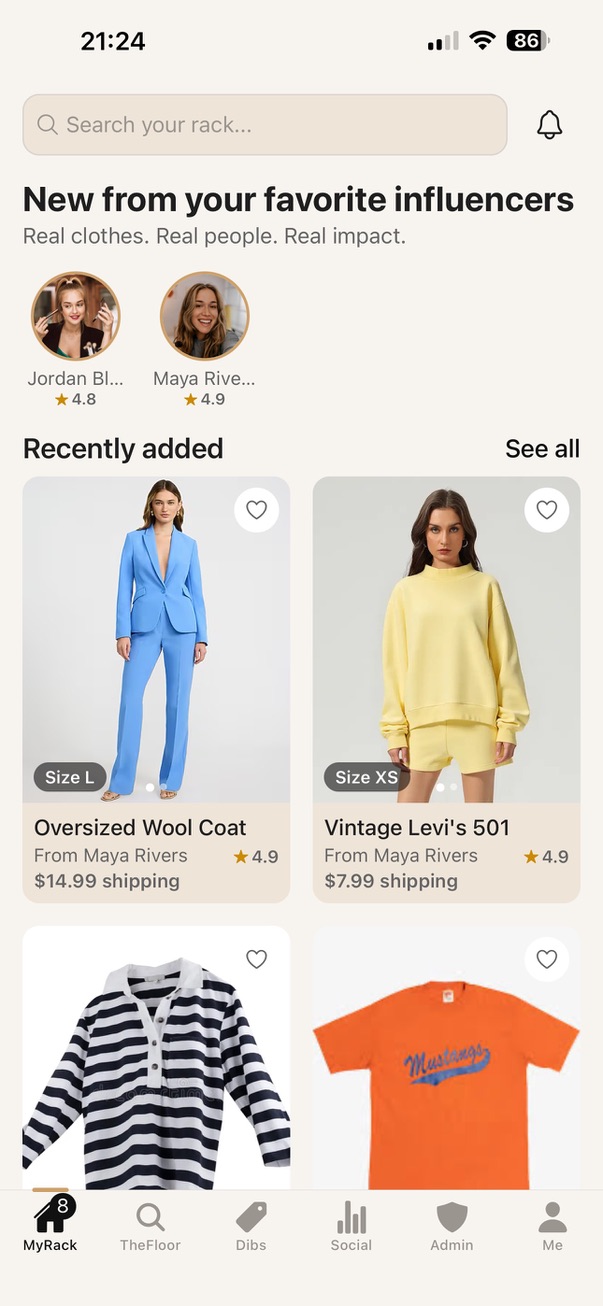
Your personalized home feed of new items from only the influencers you follow, with their profiles in a row up top.
Dibs
Everything you've claimed — your active claims waiting on payment, and your paid orders to track from label to doorstep.
Give
For approved influencers — run campaigns, create and manage the items you're giving away, and fulfill orders.
Me
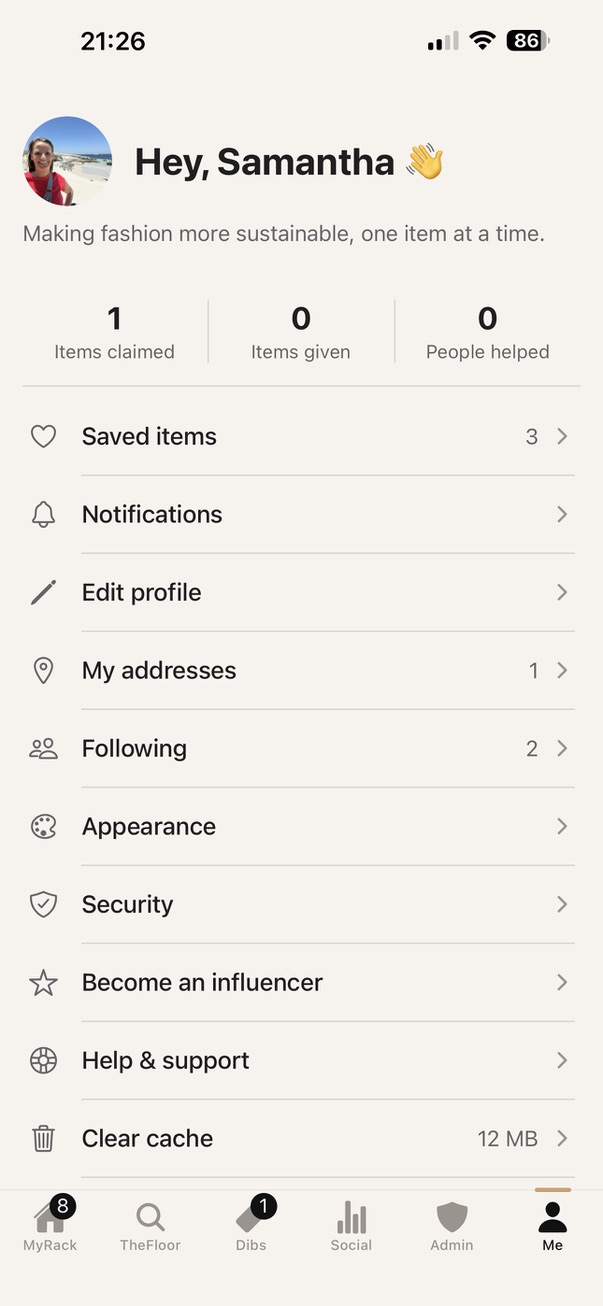
Your profile and settings: addresses, who you follow, saved items, notifications, appearance, security, and support.
Browsing and saving items
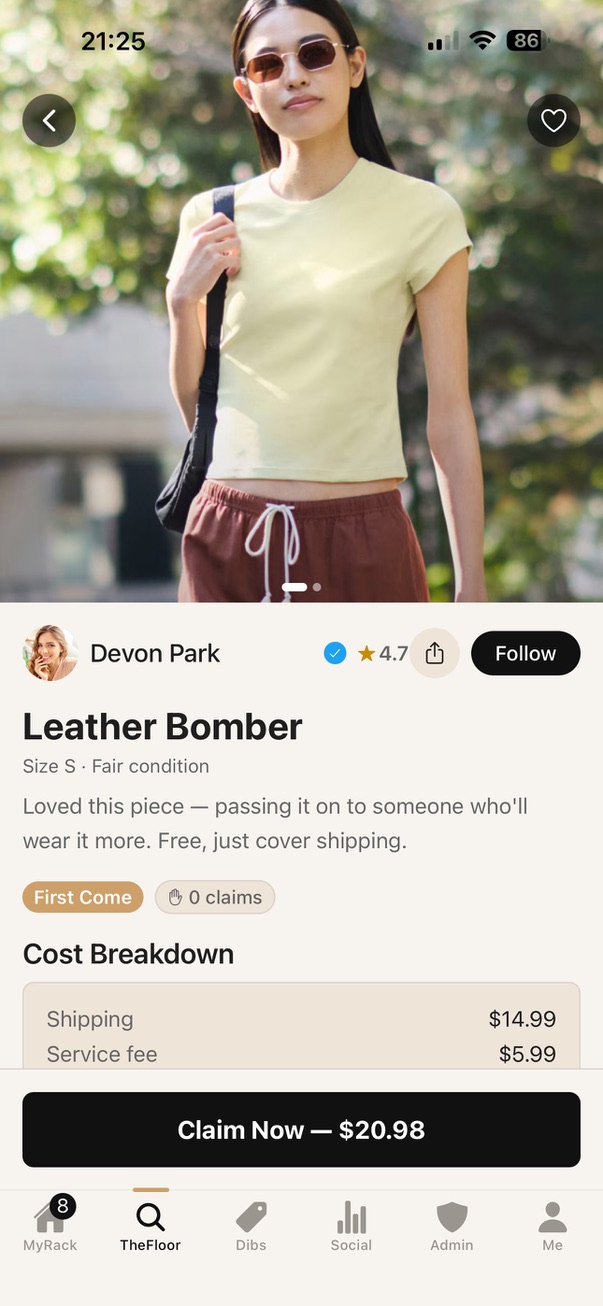
Want a closer look at something? Tap any item to open its full details — you'll get a photo gallery, the size and condition, who's giving it away, the shipping price, and a description.
Not ready to claim it yet but don't want to lose it? Tap the ♥ heart on the item to save it. To find your saved pieces again later, open TheFloor and switch on the Saved filter, or open the Me tab and tap Saved items — both show only the items you've hearted.
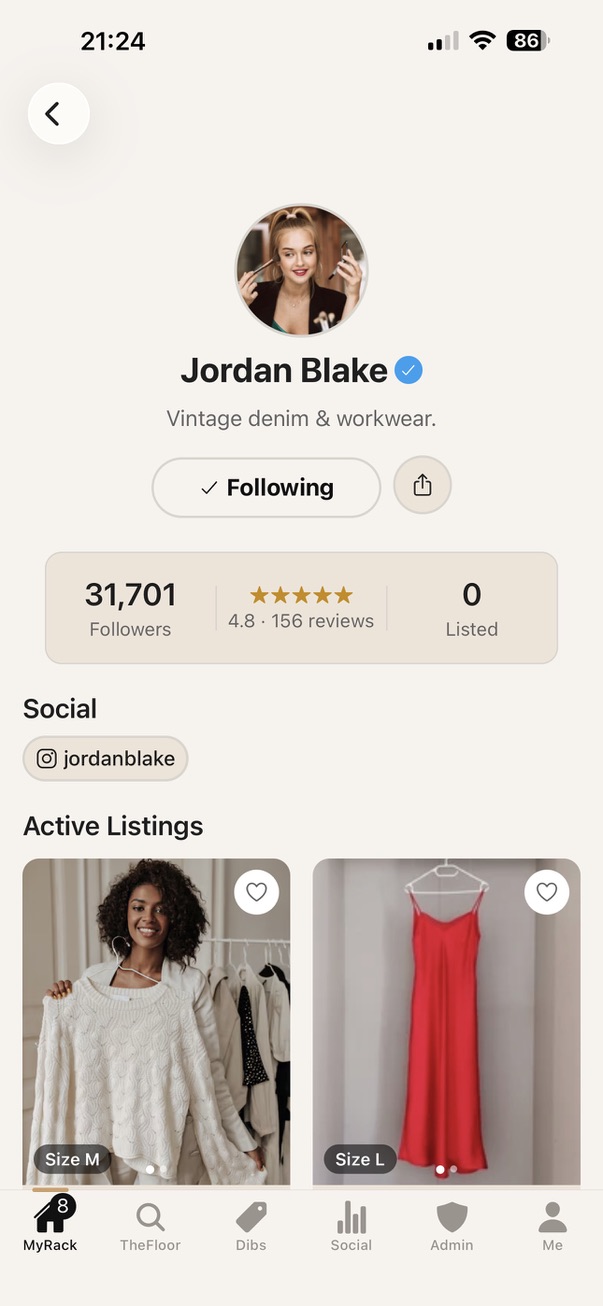
Curious about a particular influencer? Tap their name or photo to open their profile, where you'll see their rating, their follower count, and everything they currently have listed — their whole closet in one place.
How claiming works
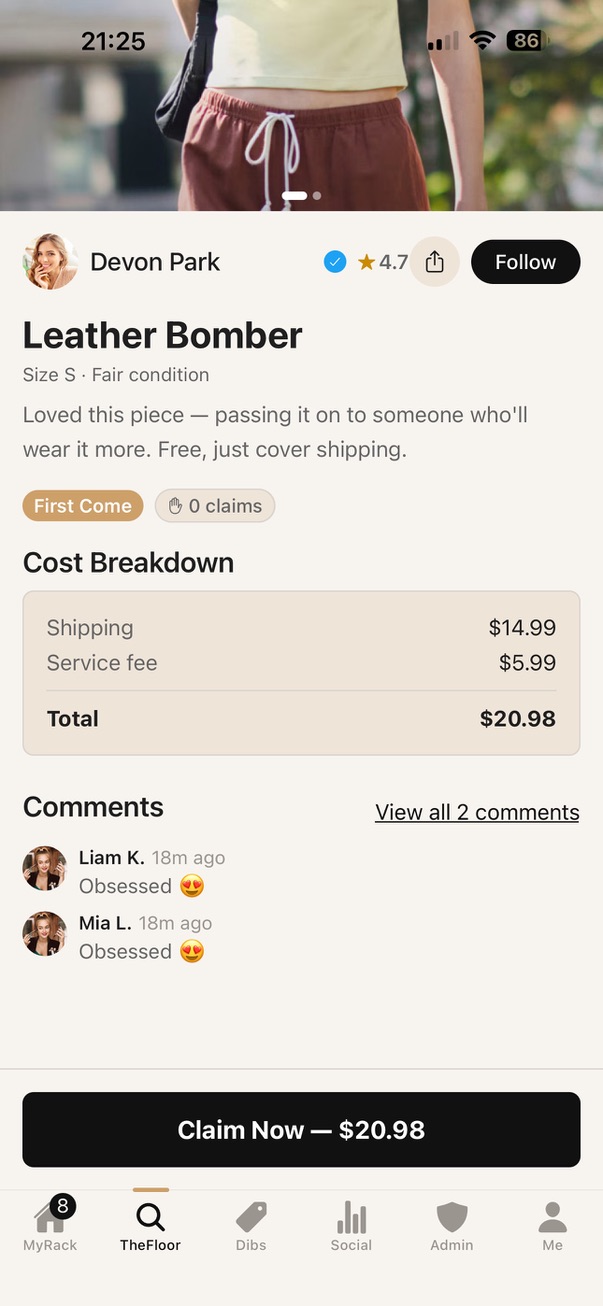
Every item is free — you only ever pay shipping and a small service fee, and you'll see both in the cost breakdown before you commit to anything. How you claim depends on how the influencer set up the giveaway, so here are the four styles you'll run into.
If it's first come, first served: speed wins. Open the item and tap Claim Now — the first person to tap it gets the item instantly and goes straight to checkout. These move fast, so don't wait around.
If it's a random draw: open the item and tap Enter Draw to add your name to the hat. When the deadline arrives, a winner is picked at random from everyone who entered, and you'll get a notification if it's you.
If it's influencer picks: open the item and tap Register Interest. The influencer then personally chooses who receives the piece.
If it's a campaign drop: the item is one of a series an influencer releases over time, and the winner comes off a shared leaderboard rather than a draw or a pick. You climb the leaderboard by sharing your own link and bringing friends into the campaign. See Campaigns below for how that works.
However you claim it, once the item is yours to buy it lands in your Dibs tab, ready for payment.
If a giveaway doesn't go ahead: entries never sit in limbo. A random draw that reaches its deadline with nobody entered is closed automatically. If an influencer picks the winner themselves but doesn't choose, we remind them daily for five days and then close the giveaway. And if an influencer withdraws a listing, everyone who entered is told. In every case your entry is cleared from Dibs and you're notified — you're never left waiting on something that isn't happening.
Paying and getting your item shipped
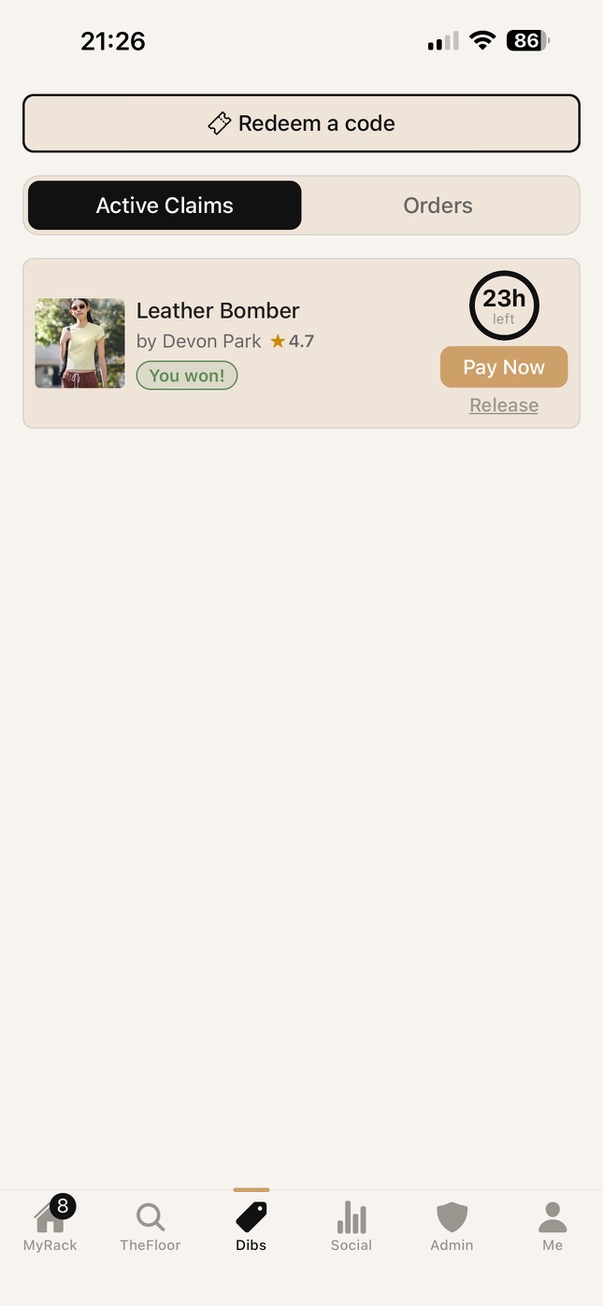
So you've won an item — here's how to pay and get it shipped. The item shows up in your Dibs tab with a countdown ring around it. You have 24 hours to pay before it's released to the next person in line, so don't sit on it. Changed your mind? Tap Release and it's freed up for someone else, no harm done.
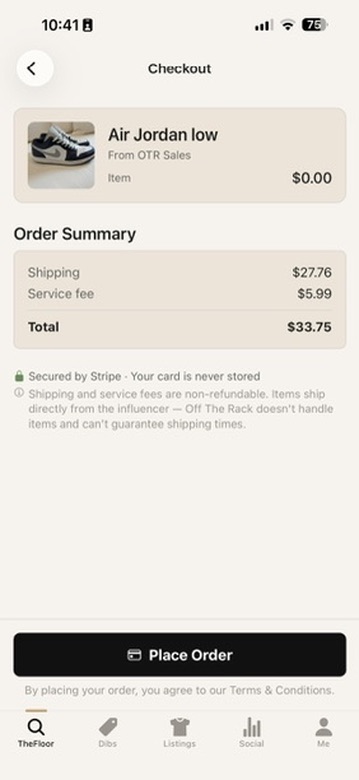
When you're ready to check out, open the item in Dibs and tap Pay Now. You'll pay securely through Stripe — we never see or store your card details — and because your address is already saved, the exact shipping cost for your area is shown up front with no surprises at the end. Review the total and tap Place Order.
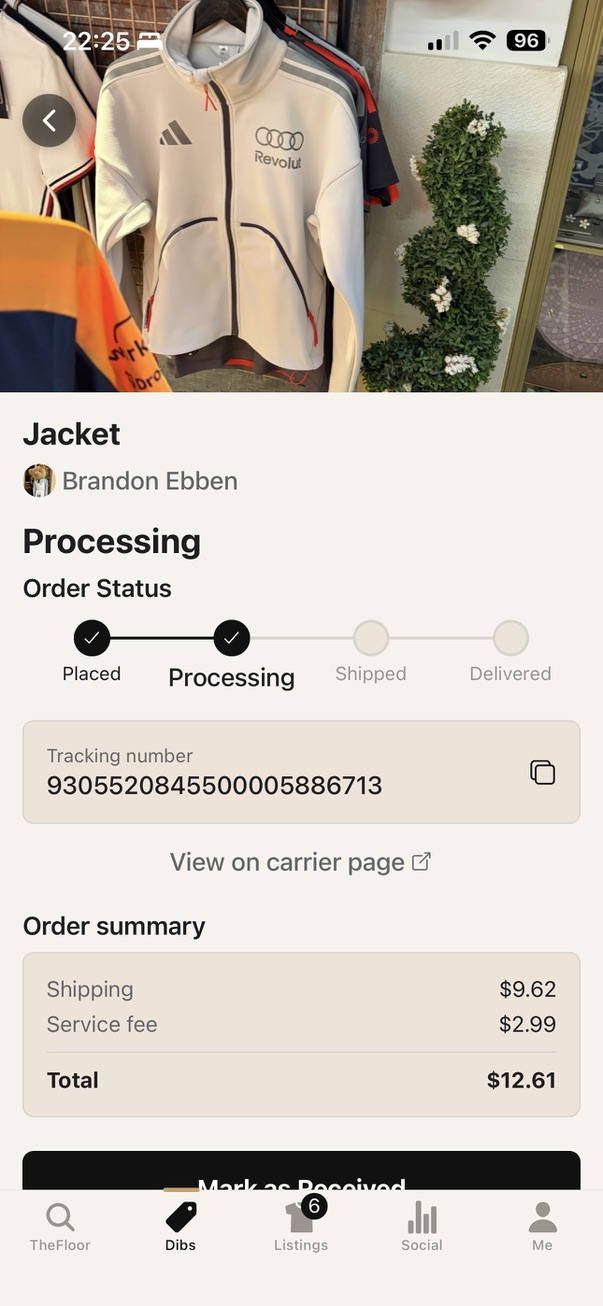
After you pay, the influencer prints a prepaid label and ships your item. To check where it is, open the order from your Dibs tab — you'll find a status tracker (Placed → Processing → Shipped → Delivered) and the carrier's tracking number. When it lands on your doorstep, tap Mark as Received, and if you'd like, leave a review.
Storefront codes
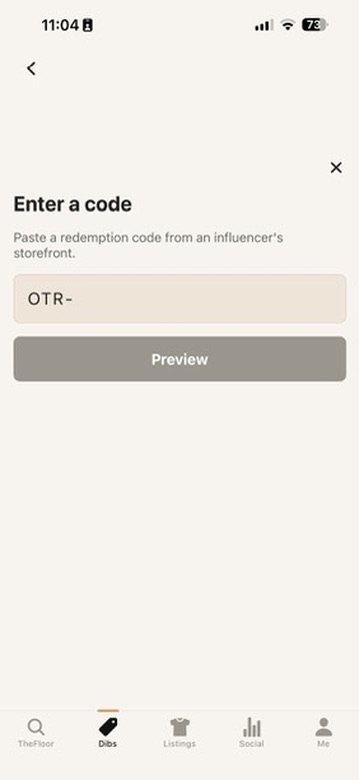
Got a code from an influencer — maybe in a video, at an event, or through their storefront? Here's how to use it. Open your Dibs tab and tap Redeem a code, type the code into the Enter a code field, and tap Preview. You'll see the item first, and if the code checks out, it unlocks your claim. From there you pay in Dibs exactly like any other item.
Codes don't last forever. Each one is valid for 90 days from when the influencer generates it, and can be used once. If a code has expired or has already been redeemed, the preview tells you before you commit to anything.
Comments & keeping the community safeNew
Every item has a comments section where you can ask questions and share the love. To join in, open an item and scroll down to Comments (or tap View all comments to see the whole thread), type your message in the Add a comment box, and tap the send button.
How to report a comment
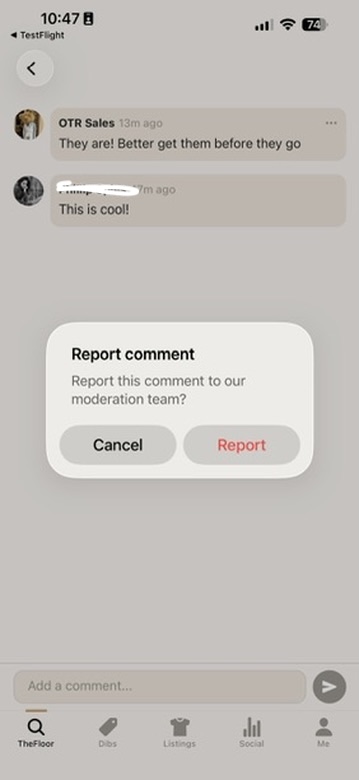
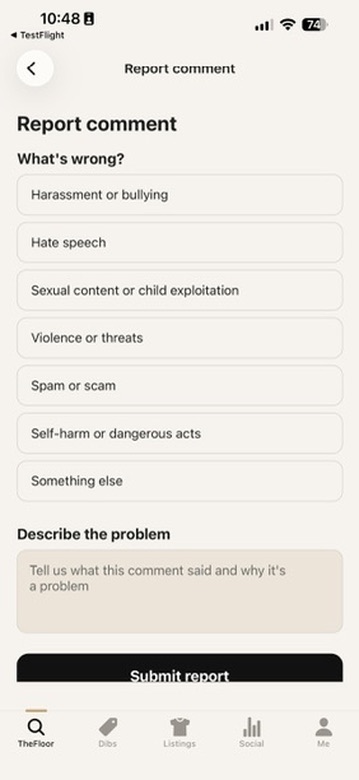
See a comment that's harassing, hateful, spammy, or otherwise breaks our Community Guidelines? Here's how to report it. Tap the ⋯ button on that comment (or press and hold it), then tap Report in the dialog that pops up. Choose what's wrong — Harassment, Hate speech, Spam, and so on — add a sentence of detail if it helps, and tap Submit report. You can report anyone's comment except your own.
Reports are a vote, not an instant takedown — no single report removes a comment on its own. Once three different people report the same comment, it's automatically hidden from public view and sent to our team to review. We then either restore it or remove it for good. This keeps the community self-policing while protecting against any one person silencing a conversation.
How to report a listing
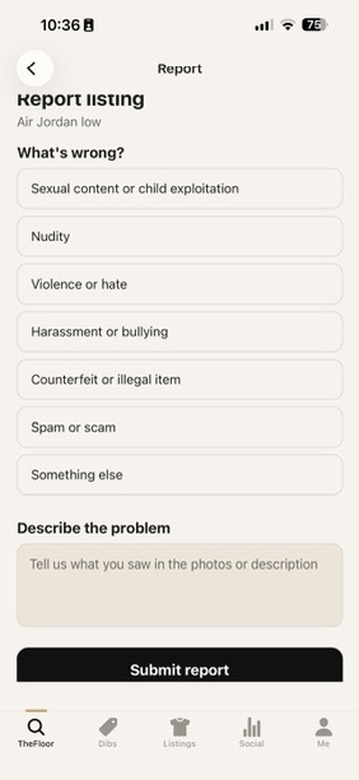
Want to flag a whole item instead of a comment? Open the item, tap Report, pick the reason that fits (a scam, a prohibited item, inappropriate content, and so on), and tap Submit report. Our team reviews every reported listing and takes down anything that breaks the rules.
Leaving a review
Once your order arrives and you've tapped Mark as Received, you'll be invited to leave a review. Tap the number of stars (one to five) that matches your experience, add an optional comment, and tap Submit. Your review feeds into the influencer's overall rating, which shows next to their name across the app and helps everyone find the closets worth claiming from.
Notifications, security & your account
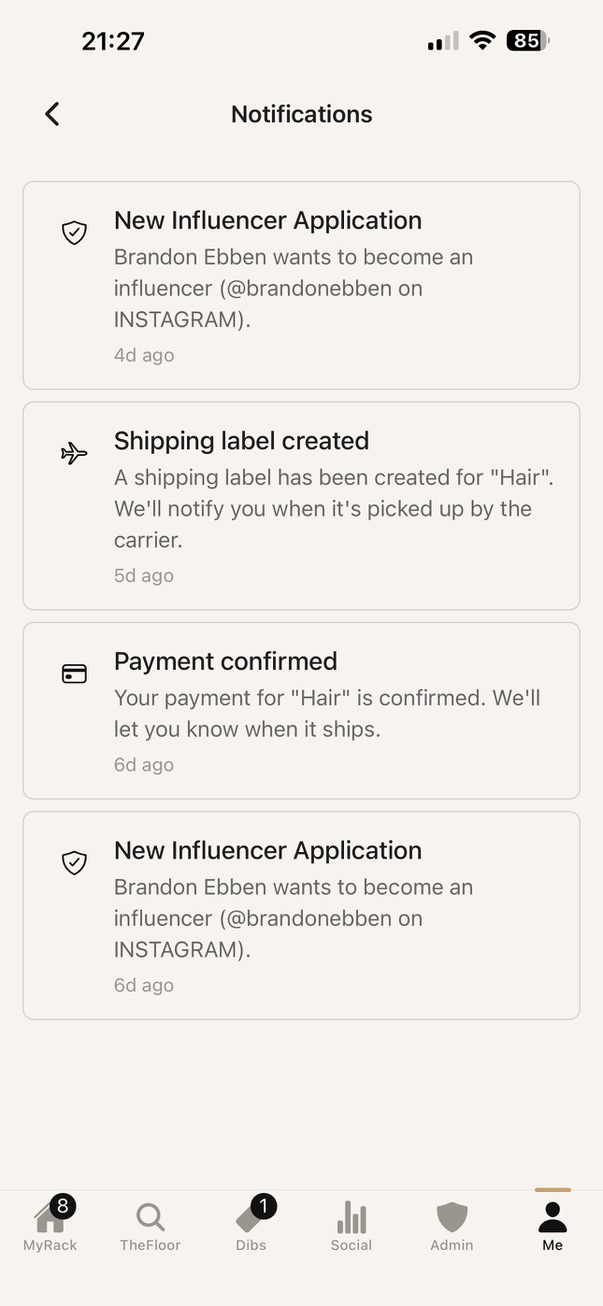
Want to stay on top of what's happening? Tap the bell on MyRack (or open the Me tab and tap Notifications) to see every update — when you win a draw, when a payment goes through, when your item ships, when someone replies to a comment, and more.
Turning on Face ID / fingerprint unlock
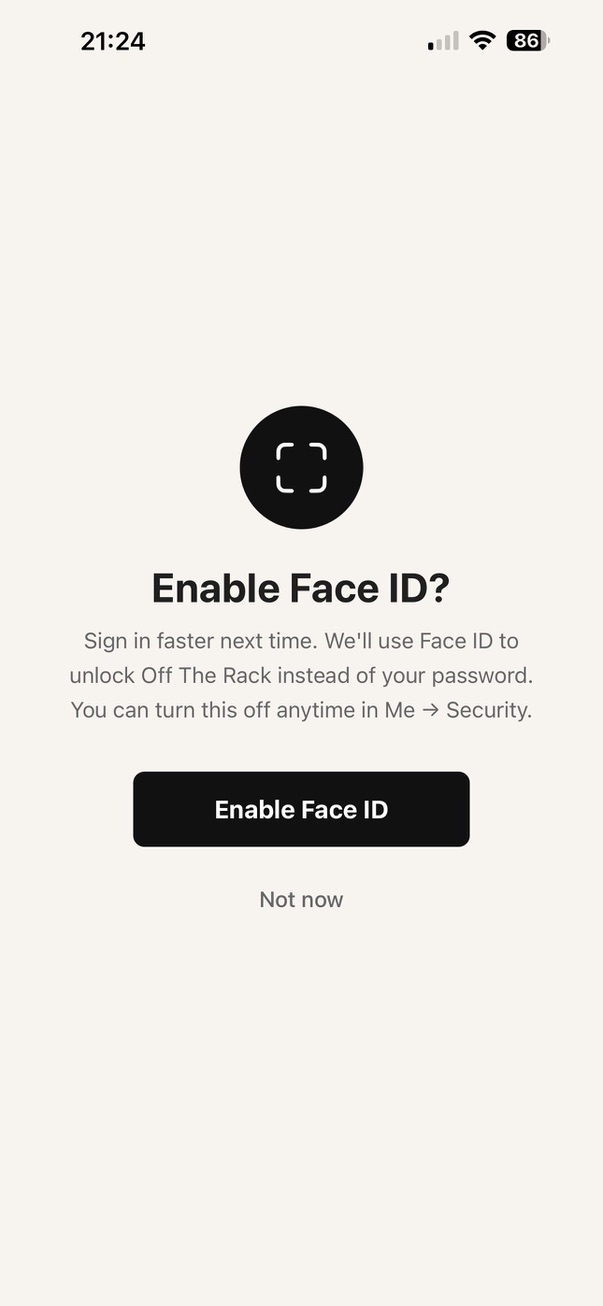
Like to keep the app private? You can lock it behind Face ID or a fingerprint. You'll be offered this the first time you sign in — just tap Enable — or you can switch it on later: open the Me tab, tap Security, and flip on the Face ID toggle. Your biometric data never leaves your device; it only unlocks the app locally, and signing into your account is still required on a brand-new phone.
Switching to dark mode
Prefer a darker look? Open the Me tab, tap Appearance, and choose Light, Dark, or System to follow your phone's own setting.
Deleting your account
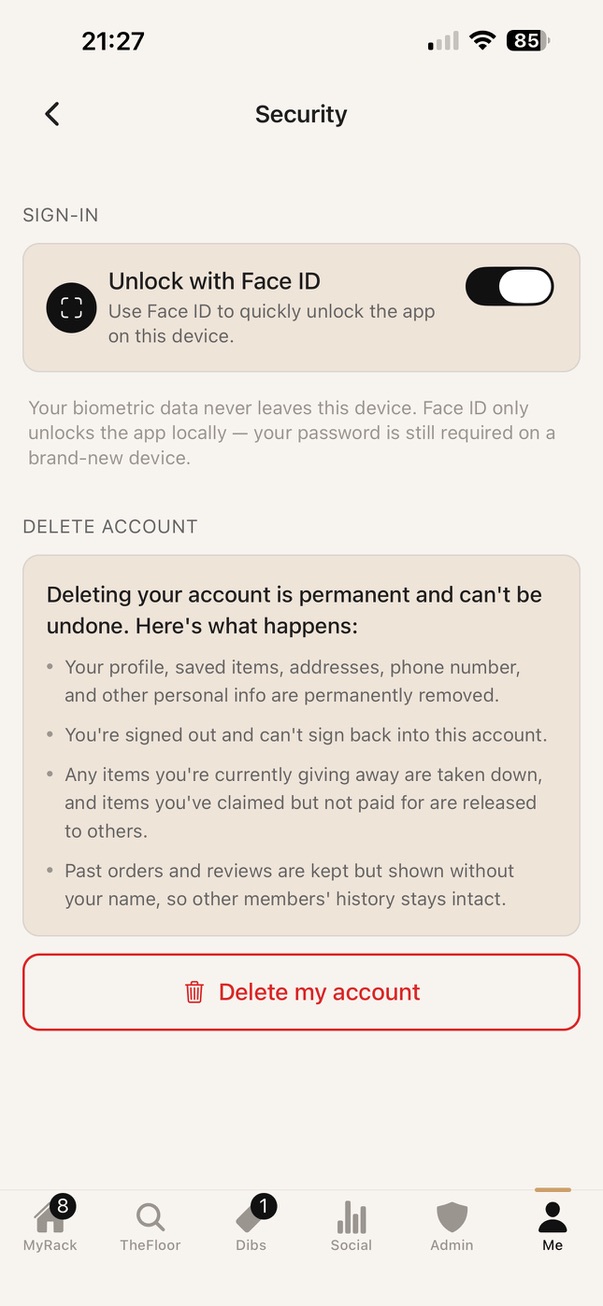
Need to close your account? Open the Me tab, tap Security, then Delete my account. This permanently removes your profile, saved items, addresses, and personal info; signs you out; takes down anything you're giving away; and releases any items you've claimed but not yet paid for. See Delete Account for the full details.
Giving away clothing as an influencer
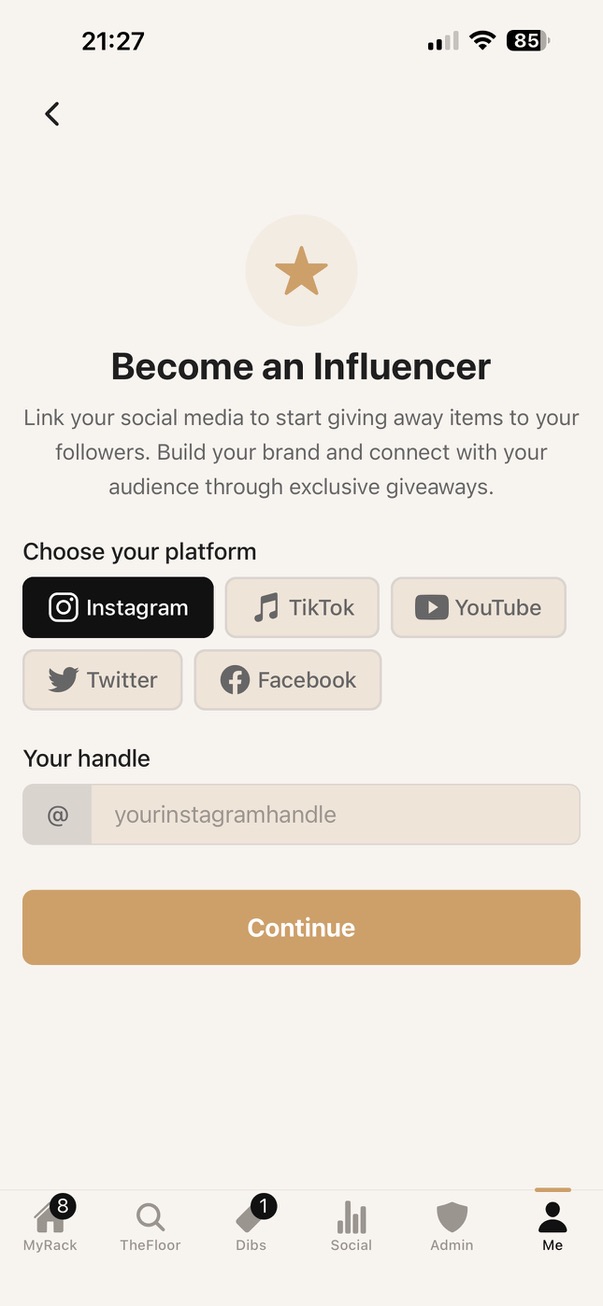
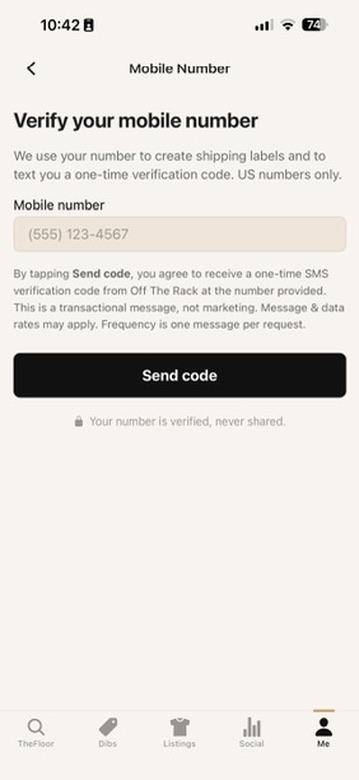
Want to give your own clothes a second life? Here's how to start. Open the Me tab and tap Become an influencer. Pick the platform where you have a following — Instagram, TikTok, YouTube, X, or Facebook — type in your handle, and tap Submit for review. You'll also be asked to verify your mobile number: enter it, tap Send code, then type the 6-digit code we text you and tap Verify. This step is required because shipping carriers need a real phone number on every label.
Listing an item — with AI helpNew
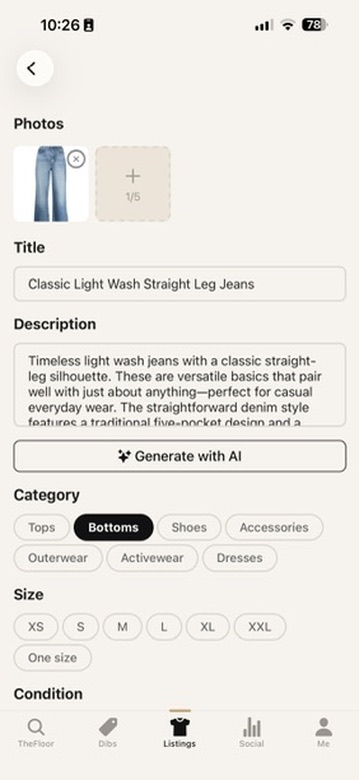
Ready to list something? From the Give tab, tap + to start a new listing and add up to five photos. Then let the app do the writing for you: tap Generate with AI and we'll suggest a polished title, description, category, size, and condition based on your photo — tweak anything you like before it goes live. Prefer to write it yourself? Go right ahead.
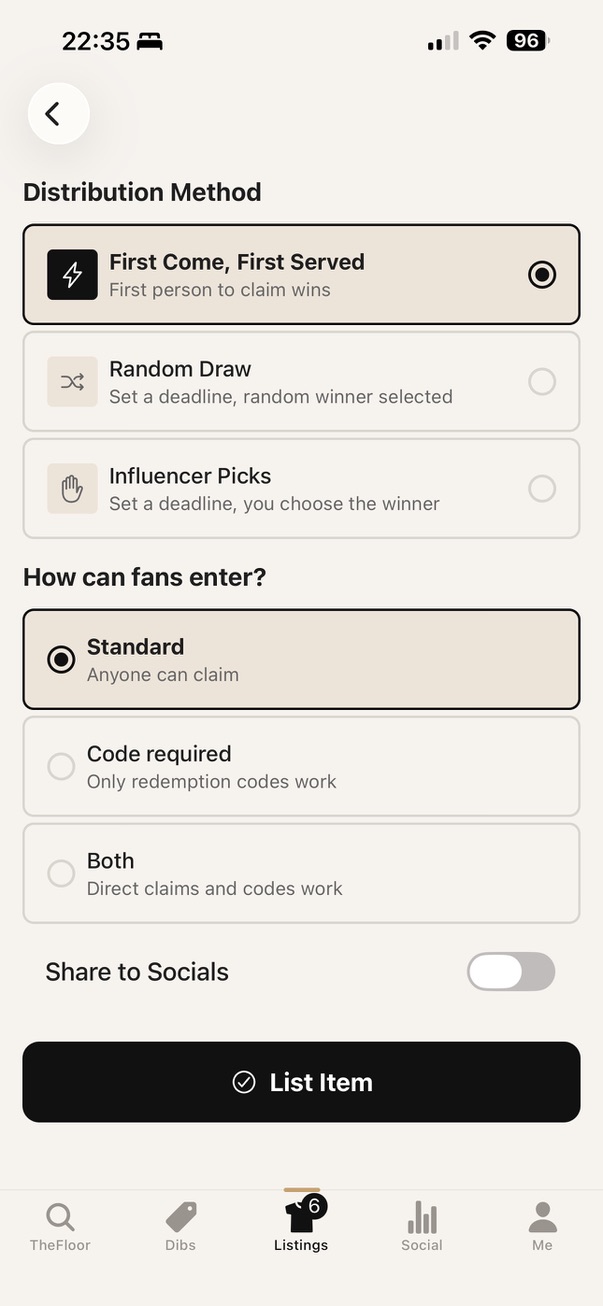
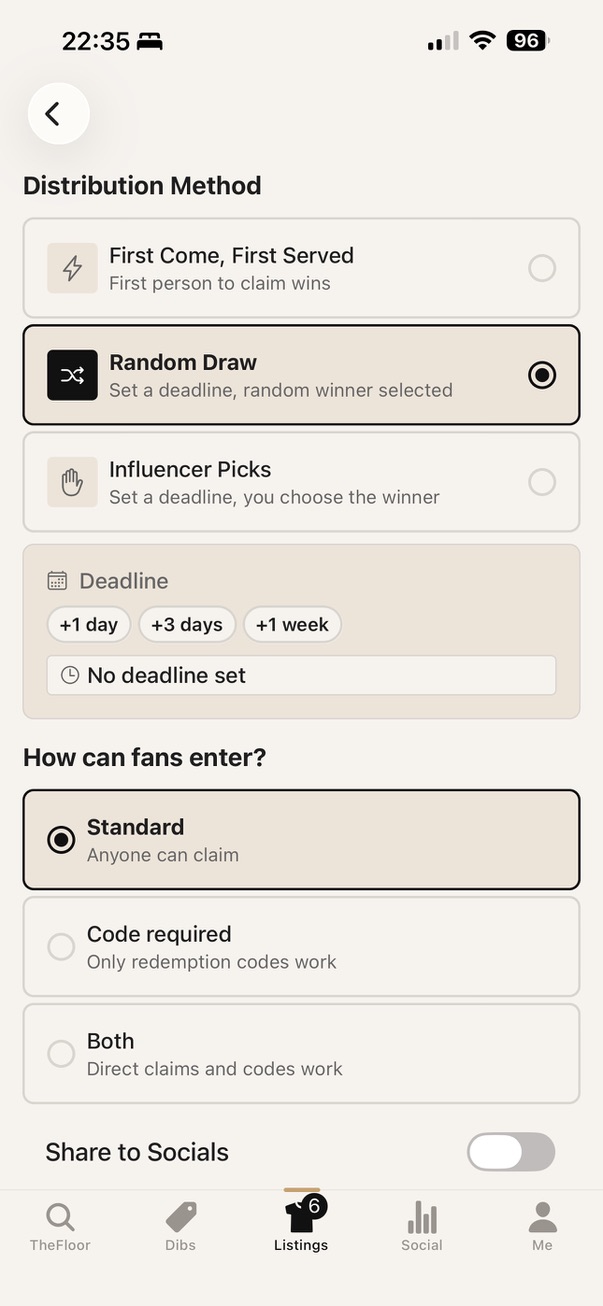
Next, choose how it ships. Tap USPS for a simple flat rate, or UPS if you'd rather drop it at a UPS location (you'll enter the package weight, and the real cost shows right under the picker). Finally, pick a giveaway style — First Come, Random Draw, or Influencer Picks — set who can enter (anyone, code-only, or both), optionally turn on Share to Socials, and tap Publish.
Fulfilling an order
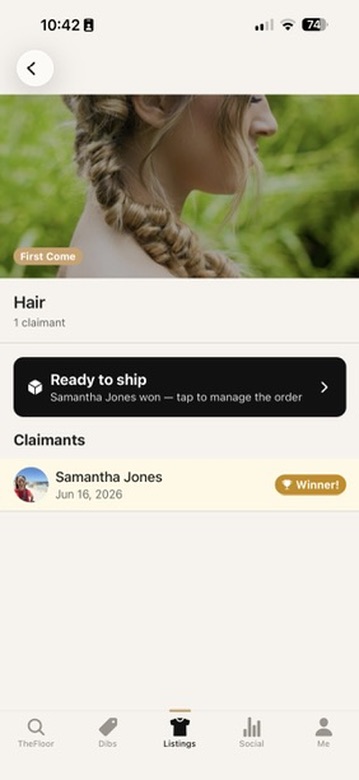
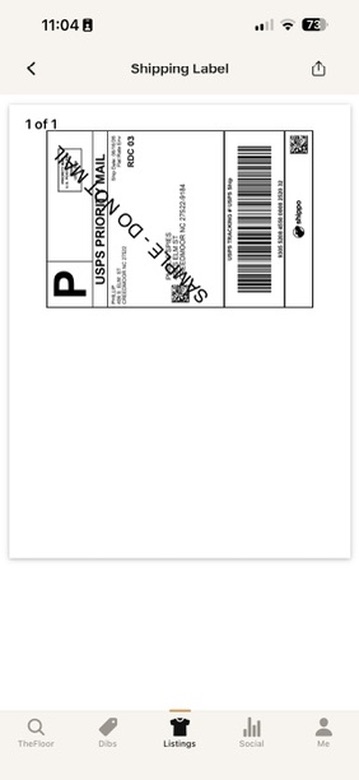
When someone pays for one of your items, here's how to ship it. Open the Give tab and go to your orders, then tap Generate label to create the prepaid shipping label. Attach it to the package and drop it off — the buyer is automatically kept up to date with tracking from there. Running a draw or influencer-picks giveaway? Open the item's claim screen to manage entrants and tap Pick winner when you're ready.
Tracking your social impact
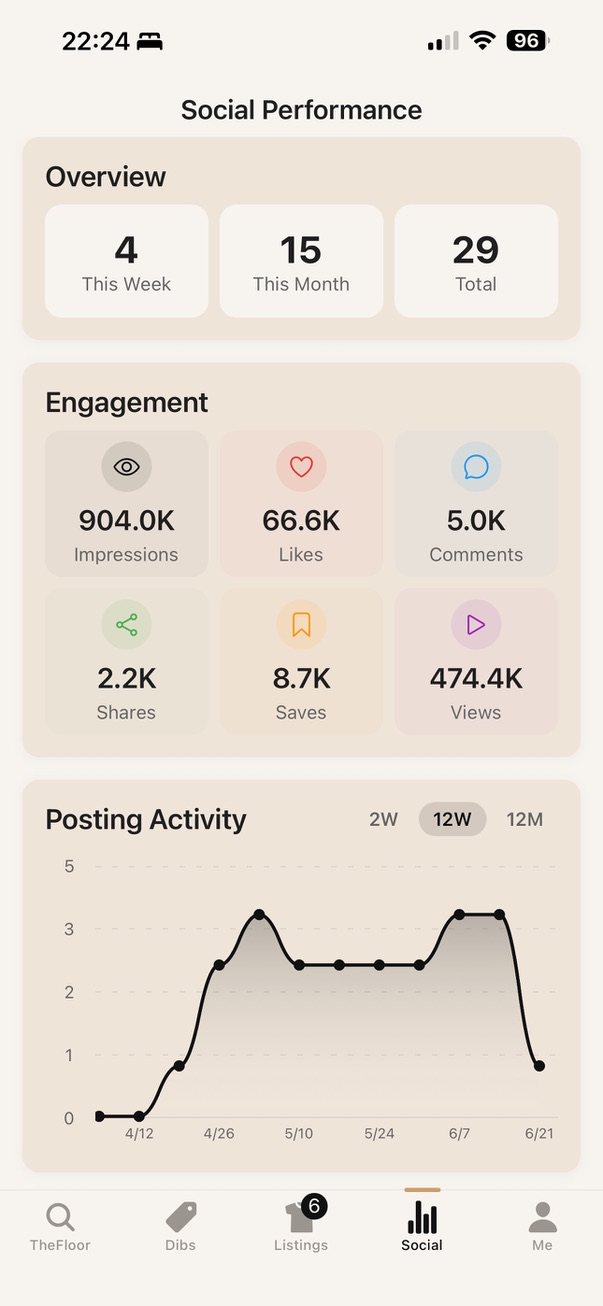
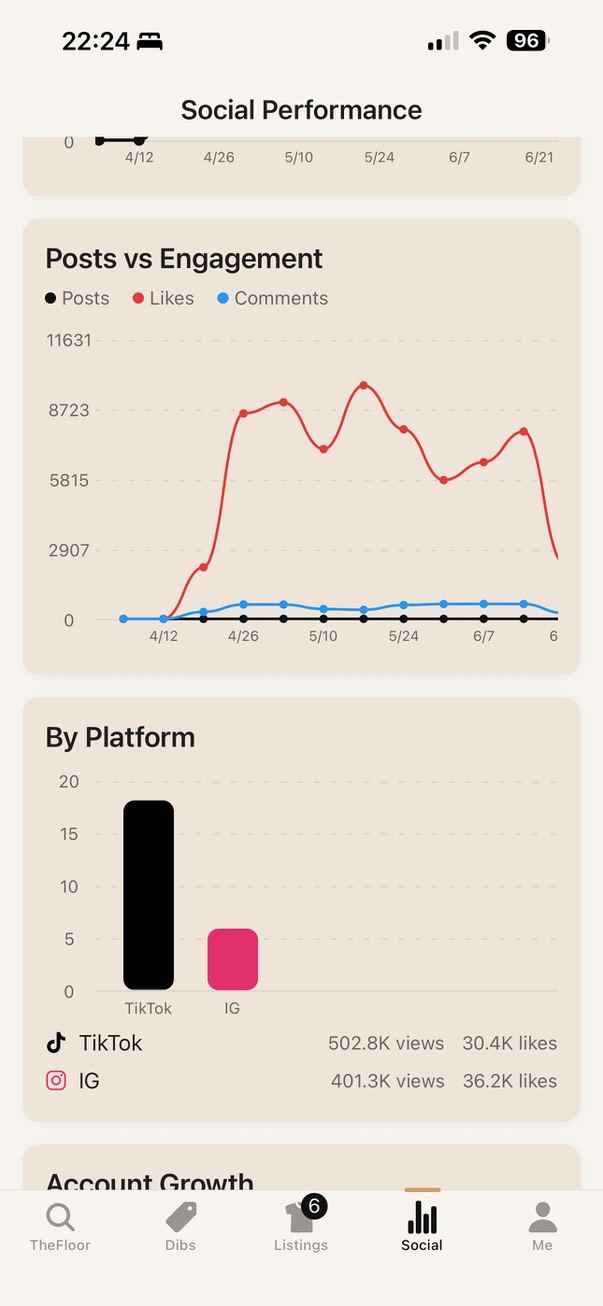
Curious how your drops are performing? Connect your accounts first: open the Me tab, tap Social accounts, and link your platforms. A Social tab then appears with a full dashboard — impressions, likes, comments, shares, saves, and views, plus your posting activity over time and a breakdown by platform. And whenever you tap Share on a listing, you can edit the caption and hashtags and pick exactly which connected platforms to post to.
See what's working with Insights
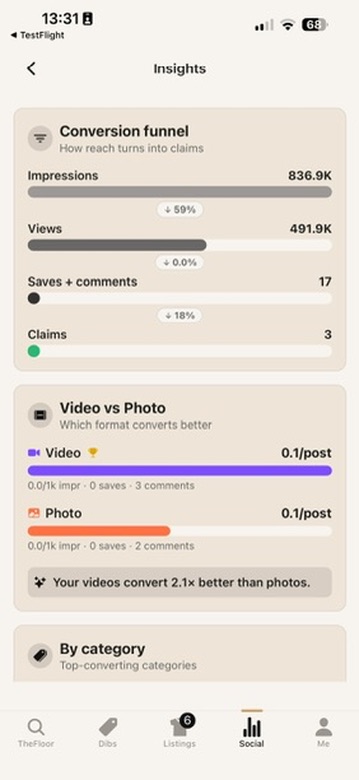
Want to know why some drops take off? From the Social tab, tap View detailed insights. At the top, a conversion funnel shows how reach turns into claims — impressions to views to saves & comments to actual claims — with the drop-off at each step. Below it, Video vs Photo compares which format converts better for you, and By category, By condition, and By size rank what your audience claims most, starring your top performer in each. The screens stay locked until you've posted enough for a fair read, then fill in automatically.
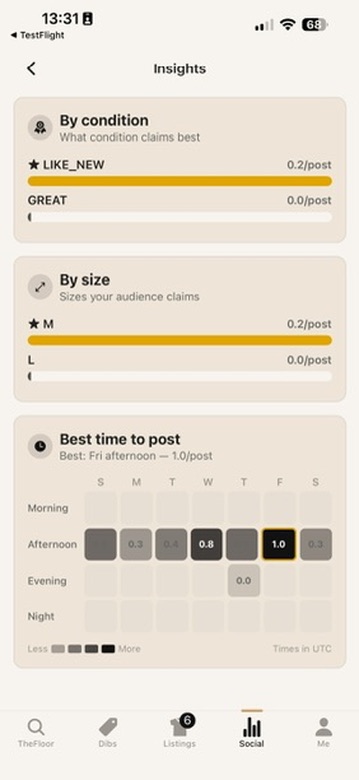
Scroll on and Best time to post maps your week as a heatmap — each cell is a day and time of day, shaded by how well posts there convert, with your strongest window outlined in gold. It's the quickest way to spot when your audience is most likely to claim, so you can time your next drop for maximum reach.
Sharing your listings
Want to send a drop straight to your followers? Open the listing and tap Share (or Copy link). The link opens the item right in the app for anyone who already has it, and prompts everyone else to download it first — an easy way to get your drops in front of your audience.
Grow faster with campaignsNew
Ready to turn a giveaway into real growth? Instead of listing a single item, run a campaign — a series of drops that open one at a time, where every entrant shares a referral link and races friends onto a live leaderboard. It's the fastest way to bring new fans to your profile: supporters invite their friends to climb the board, community goals reward the whole group with extra winners, and the campaign can even auto-launch the moment you cross a follower milestone. From the Give tab, open Campaigns and tap + — the app can even draft the whole thing from a sentence and your photos. See Campaign giveaways below for the full walkthrough.
Campaign giveawaysNew
A campaign is a bigger kind of giveaway. Instead of a single item, an influencer puts up a series of drops — real pieces that open for entry one at a time — and turns the whole thing into a friendly referral race. Everyone enters for free, and the fans who bring the most friends climb a live leaderboard and take home the drops. It's the most fun way to win on Off The Rack, and the fastest way for an influencer to grow.
Entering & racing (as a fan)
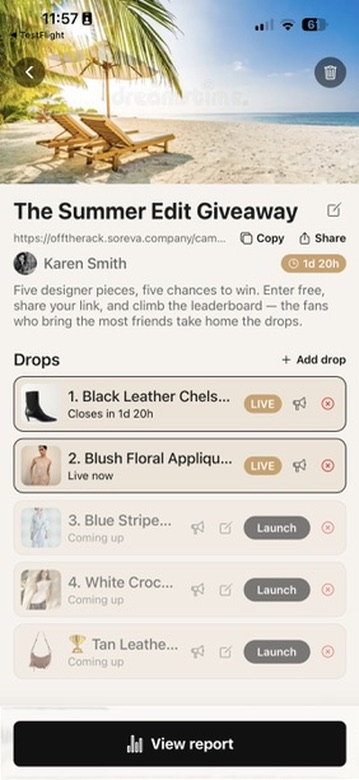
You'll spot a campaign on TheFloor — tap the Giveaways banner at the top — or on an influencer's profile, or from a link a friend shares. Open it and tap Enter: it's free, and you're instantly in the race for every drop. Entering also gives you your own referral link — tap Copy or Share and send it to friends. Every person who joins the campaign through your link scores you a point and moves you up the leaderboard. The drops open on a schedule, each a real item with its own countdown, and when a drop closes the fans at the top of the board win.
The leaderboard & per-drop races
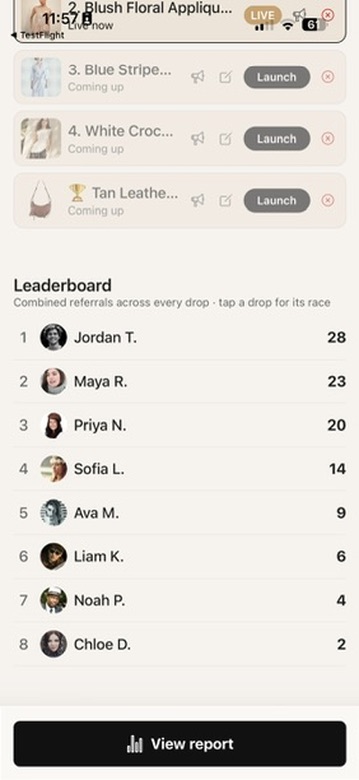
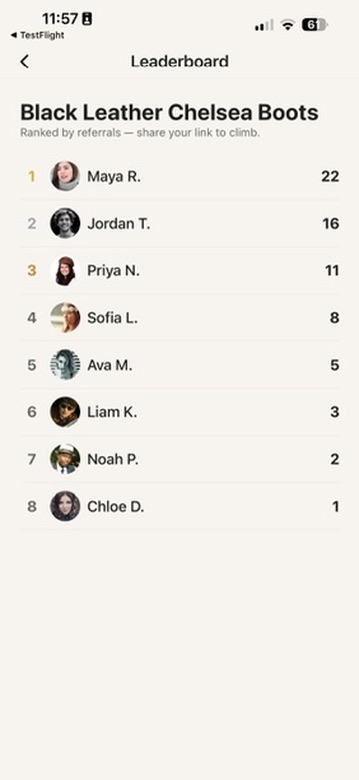
The main Leaderboard on a campaign shows the overall standings — combined referrals across every drop — so it's the season-long race that decides the grand prize. Want to see who's winning a single item right now? Tap any live drop to open its own drop leaderboard, ranked just for that piece. The boards are public, so you (and even people without an account) can watch the race unfold in real time.
Creating a campaign — with AINew
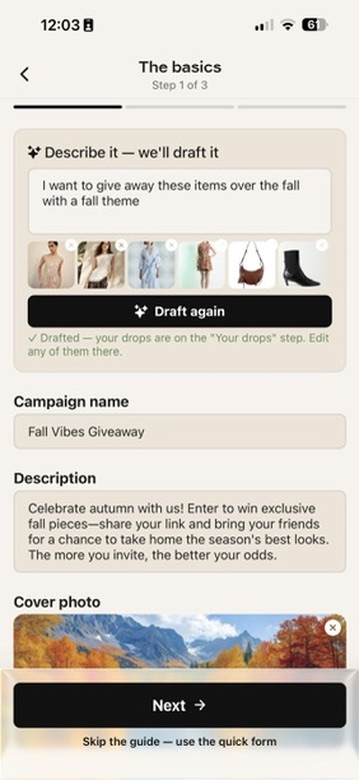
Ready to run your own? From the Give tab, open Campaigns and tap +. Then just describe what you want in plain words — like “I want to give away these items over the fall with a fall theme” — add your item photos, and tap Draft again. The app writes your campaign name, description, cover, and a full set of drops for you, ready to tweak. Prefer to do it by hand? Tap Skip the guide — use the quick form.
Building your drops — and how they progress
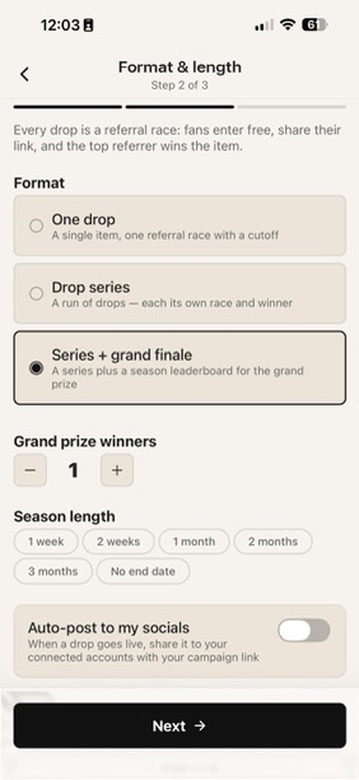
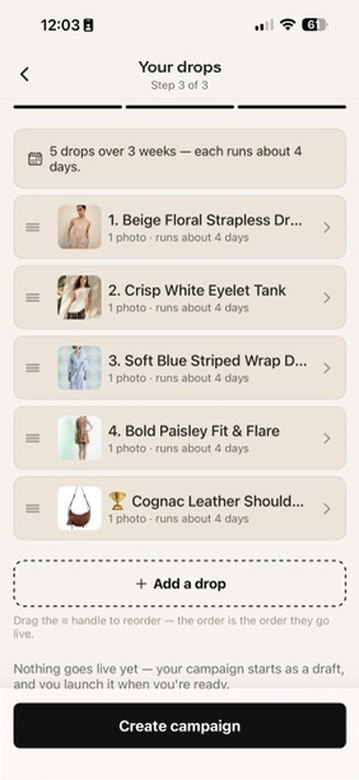
A campaign is really a queue of drops, and they race one at a time. Add each drop like a listing — photos, size, condition — set how long its race runs, and drag them into the order you want them to open. Choose how long the whole campaign lasts too (a week up to a few months, or no end date).
Here's the part you don't have to manage: once you launch, the first drop goes live, and the moment its race window closes the next drop opens automatically, in order, all the way down to the final drop. Each new drop's clock starts the instant the previous one ends, so the race never stalls. When a drop closes, its winner is settled and everyone gets a notification just before the next drop begins. Want to speed things up? Every upcoming drop has a Launch button, so you can open the next one early instead of waiting for the clock.
Community goals & extra winners
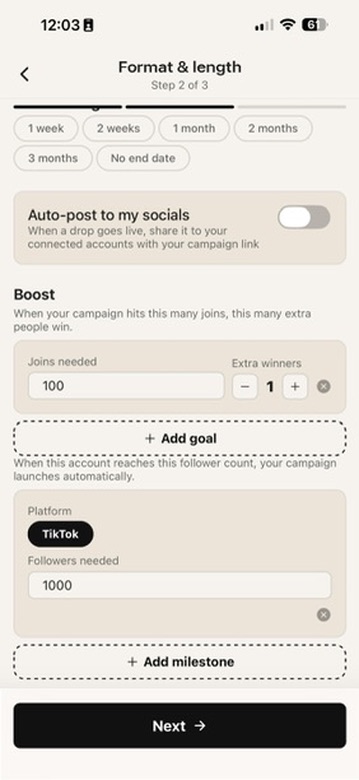
Community goals turn the campaign into a team effort. Turn on Boost and set a target — “when the campaign hits this many joins, this many extra people win.” Every entry from every fan counts toward the same shared total, so the whole community has a reason to keep inviting, not just the people at the top. The moment the campaign passes a goal's join target, that goal unlocks, everyone gets a heads-up, and when the drops are awarded those extra winners are drawn in on top of the normal drop winner. Stack a few goals at rising thresholds — 100 joins, 250, 500 — and the rewards grow as the campaign catches fire.
Who wins — and starting on a milestone
Each drop is won by the fans at the very top of that drop's leaderboard — the ones who brought the most friends — so referring is exactly how you win. Community goals widen that circle by adding more winners further down the board, and a campaign can finish with a grand finale drop for its biggest prize. You can also let the campaign start itself: add a follower milestone and it launches automatically the moment your TikTok or Instagram crosses the follower count you pick — perfect for tying a giveaway to hitting a round number. And with Auto-post to my socials on, each drop shares itself with your campaign link the second it goes live.
Watching it grow
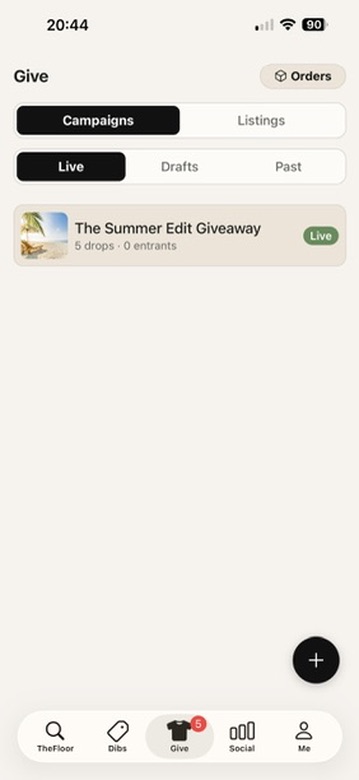
Once you launch, your campaigns live under the Give tab's Campaigns view, split into Live, Drafts, and Past so you always know what's running. Open any campaign to watch its drops open in order and the leaderboard climb in real time, then tap View report for the full picture — total entrants, referred joins, the top referrers on every drop, and the follower growth your campaign drove.
Frequently asked questions
Is the clothing really free?
Yes. The items themselves cost nothing — you only pay the shipping and a small platform service fee, and both are shown before you confirm.
How long do I have to pay after winning?
24 hours. The countdown ring on the item in your Dibs tab shows the time remaining. After it runs out, the item is released to the next person.
What's the difference between TheFloor and MyRack?
TheFloor shows every available item across the whole marketplace. MyRack is your personal feed of items from only the influencers you follow.
How do I report a comment or listing?
For a comment, tap the ⋯ button on it (or press and hold it) and tap Report. For a whole item, open it and tap Report. Either way, pick a reason and add a little detail. A comment is automatically hidden for review once three different people report it — and you can't report your own comment.
Can the app really write my listing for me?
Yes — when creating a listing, add a photo and tap Generate with AI. We'll suggest a title, description, category, size, and condition, and you can edit all of it before publishing.
Is Face ID safe to turn on?
Yes. It only unlocks the app locally on your device, your biometric data never leaves the device, and your account sign-in is still required on any new device.
Why do I need to add an address and (for influencers) verify a phone?
Your address lets us calculate accurate shipping and deliver your items. Influencers verify a phone number because shipping carriers require a real one on every label.
Can I save an item to come back to later?
Yes — tap the ♥ heart on any item to save it, then find it again from Saved items on your Me tab or the Saved filter on TheFloor.
What happens if a giveaway I entered is cancelled or never picks a winner?
You'll be told, and your entry is cleared. A draw with no entries closes automatically at its deadline. If the influencer chooses the winner themselves and doesn't get around to it, we remind them once a day for five days and then close it. If they withdraw the listing, everyone who entered is notified.
Can I use the same phone number on more than one account?
No. A mobile number can only be verified on one account. If you see a message saying your number is already in use, contact support and we'll help.
What happens if a listing is removed after I've paid?
It depends why. If the listing broke one of our rules but the item itself is fine, we simply take it off the marketplace and your order is still honoured — the seller ships it and you receive it as normal. We only cancel a paid order when the item is something that shouldn't reach anyone at all, and in that case we contact you directly. Shipping and service fees are non-refundable, so please reach out to support if this affects an order of yours.
Does reporting a listing take it down straight away?
No. A single report doesn't hide anything — that would let one person knock a rival's listings offline. A listing is hidden for review once several different people report it, and our team makes the final call. Comments work the same way, at three reporters.
Where is Off The Rack available?
The United States only, at launch.
Still need help?
Email support@soreva.company
Or open a support ticket right in the app: Me → Help & support.